

Description
Download Mac SD Memory Card Recovery – Free Data Recovery for Mac
Overview
Mac SD Memory Card Recovery is a free, easy‑to‑use utility designed specifically for macOS users who need to retrieve lost or corrupted files from SD cards, micro‑SD cards, and other removable media. Whether the card has been mistakenly formatted, suffered a logical error, or become partially corrupted, the program scans the raw sectors of the storage device and attempts to rebuild the original file structure. It supports a wide range of file formats—including documents, spreadsheets, images, audio tracks, video clips, and application binaries—so users can recover virtually any type of data they may have misplaced. The interface is intentionally minimalist: a single green “Start” button initiates the scanning process, and progress is displayed in real‑time. While no recovery tool can guarantee 100 % success, especially if the media has been overwritten, Mac SD Memory Card Recovery offers a no‑cost, low‑risk first attempt before resorting to professional data‑recovery services.
Key Features & Compatibility
- Free, unlimited scan and recovery for personal use.
- Supports multiple card formats: SD, SDHC, SDXC, micro‑SD, and more.
- Recovers a broad spectrum of file types: photos (JPG, PNG, RAW), videos (MP4, MOV, AVI), audio (MP3, WAV), documents (PDF, DOCX, XLSX), and executable files.
- Ability to retrieve data from formatted, corrupted, or partially damaged cards.
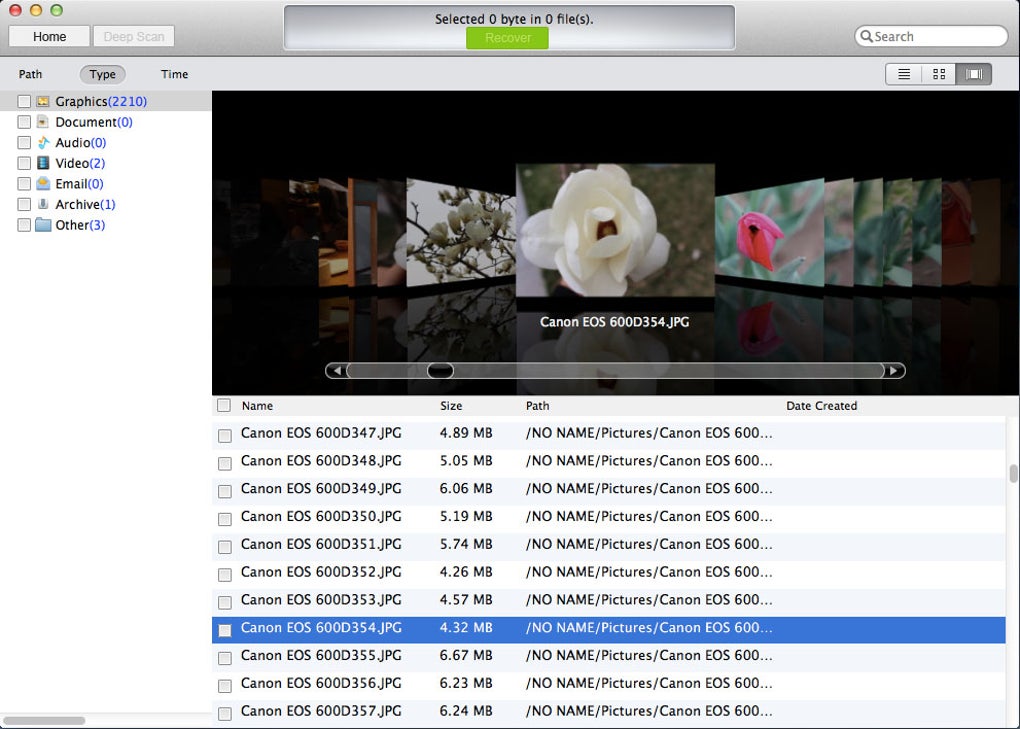
- Preview function lets you view recoverable files before committing to restoration.
- Selective recovery lets you choose specific folders or file types to save time.
- Secure deletion of temporary scan files to protect privacy.
Compatibility: The application runs on macOS 10.12 Sierra and later, including macOS Monterey, Ventura, and the upcoming macOS Sonoma. It works on both Intel‑based Macs and Apple Silicon (M1, M2) thanks to native universal binaries. The software does not require any additional drivers; it leverages the built‑in macOS disk management framework to access external cards via USB, Thunderbolt, or card‑reader adapters.
Installation & Usage Guide
Step‑by‑Step Installation
1. Download the installer: Click the green “Download” button on the official website. The file is a small .dmg package (≈ 12 MB).
2. Mount the DMG: Double‑click the downloaded file; macOS will mount it as a virtual drive.
3. Copy to Applications: Drag the “Mac SD Memory Card Recovery” icon into your /Applications folder. This step ensures the app receives the proper permissions.
4. Open the app: Locate the program in Launchpad or Finder and double‑click to launch. macOS may prompt you to confirm that you trust the developer; click “Open” to proceed.
Running a Recovery Session
1. Insert the SD card: Use an external card reader if your Mac lacks a built‑in slot. The card should appear on the desktop or in Finder.
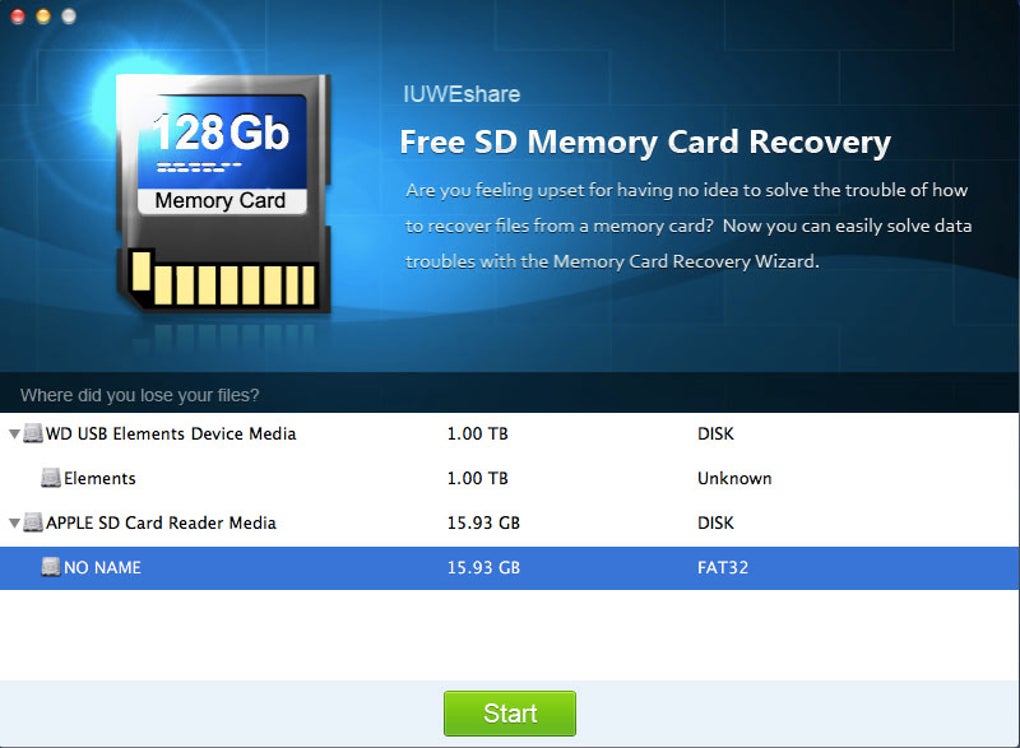
2. Select the target drive: In the app’s main window, choose the SD card from the dropdown list. The program will automatically detect the file system (exFAT, FAT32, NTFS, etc.).
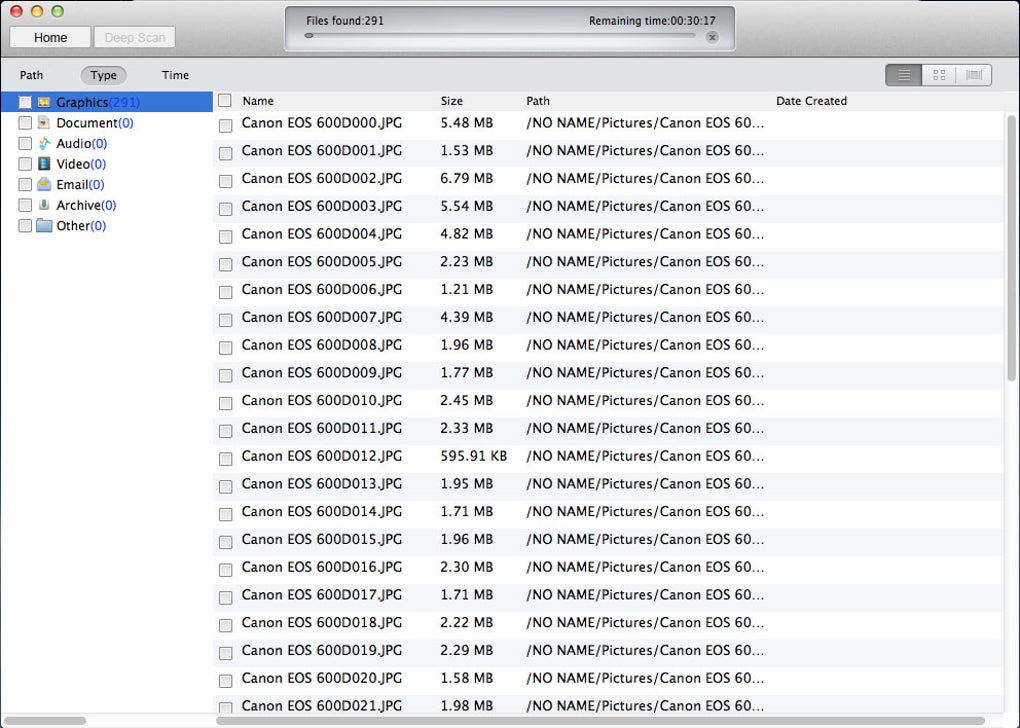
3. Start scanning: Click the green “Start” button. You can choose between a quick scan (searches for recently deleted files) or a deep scan (exhaustively checks every sector). The progress bar and estimated time keep you informed.
4. Preview & select files: Once the scan finishes, a list of recoverable files appears. Use the preview pane to verify file integrity. Tick the checkboxes for the items you wish to restore.
5. Choose a destination folder: Never save recovered files back to the same SD card, as this could overwrite other recoverable data. Select a safe location on your internal drive or an external backup drive.
6. Recover: Click “Recover”. The software copies the selected files to the destination, preserving original timestamps when possible.
7. Post‑recovery cleanup: After the process completes, you can safely eject the SD card. The app automatically removes temporary scan data, ensuring no residual traces are left on your system.
Pros, Cons & Frequently Asked Questions
Pros & Cons
- Pros:
- Completely free with no hidden fees.
- Intuitive UI suitable for beginners.
- Broad file‑type support and deep scan capability.
- Works on both Intel and Apple Silicon Macs.
- Preview function reduces wasted recovery attempts.
- Cons:
- Success rate depends on how much the card has been overwritten.
- No built‑in support for encrypted or password‑protected partitions.
- Limited to macOS; no Windows or Linux version.
FAQ
Can Mac SD Memory Card Recovery retrieve files from a card that has been formatted?
Yes. If the card was formatted but not overwritten, the program can locate the original file clusters and rebuild the files. The deeper the scan, the higher the chance of success.
Is the software safe to use on a physically damaged card?
The tool works at the logical level; it won’t worsen physical damage. However, if the card has severe hardware faults (bad sectors, broken contacts), you may need a professional data‑recovery service.
Do I need an internet connection to run the recovery?
No. After the initial download, the application works entirely offline. An internet connection is only required for updates or to download the installer.
Can I recover encrypted files or files from a password‑protected SD card?
The free version does not support decryption of encrypted containers. If the card uses hardware encryption, you’ll need to unlock it first using the appropriate software before scanning.
How does the preview function work?
During the scan, the program extracts a small data fragment of each recoverable file. For images, it shows a thumbnail; for documents, it displays the first page. This lets you verify file integrity before committing to the full recovery.
Overall Rating: 4 out of 5 stars – The software delivers solid recovery capabilities for a free tool, though it lacks advanced features like encrypted‑file support.
Conclusion & Call to Action
If you’ve ever faced the panic of an empty SD card after a photo shoot, a video project, or a crucial document transfer, Mac SD Memory Card Recovery offers a straightforward, cost‑free first line of defense. Its clean UI, broad format support, and deep‑scan engine make it a reliable choice for Mac users who need to retrieve lost data without spending a fortune on professional services. While no tool can promise 100 % recovery—especially when files have been overwritten—the program’s ability to pull data from formatted and corrupted cards often surprises users. Because the software is free, there’s virtually no downside to giving it a try before turning to paid alternatives.
Ready to see if your missing files can be resurrected? Click here to download Mac SD Memory Card Recovery now. Install it in minutes, run a scan, and let the app do the heavy lifting. Remember to always back up your media after recovery to avoid future data loss.
Guides & Tutorials for Mac SD Memory Card Recovery
How to install Mac SD Memory Card Recovery
- Click the Preview / Download button above.
- Once redirected, accept the terms and click Install.
- Wait for the Mac SD Memory Card Recovery download to finish on your device.
How to use Mac SD Memory Card Recovery
This software is primarily used for its core features described above. Open the app after installation to explore its capabilities.
User Reviews for Mac SD Memory Card Recovery 0
No reviews found





.webp)